
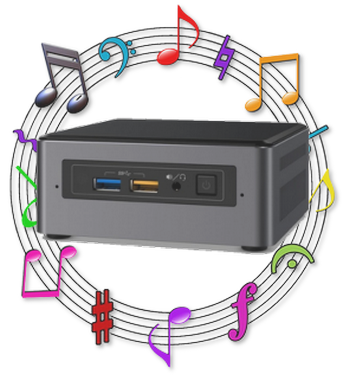
 I seriously doubt that when designing the earliest computers anyone expected them to find their way into the heart of modern home entertainment. When the first home computers became available most people deliberately kept them well away from their televisions and stereos, thinking of them as different things, with different purposes.
Probably the first home computer to play music was the Exidy Sorcerer, using a parallel port ladder DAC called "The Sorcerer's Voice". The first computer to say its own name was the Victor 9000, using an internal speaker and bit density scheme similar to modern DSD. Then following the release of the IBM-PC, which was widely adopted for home and small business use in the 1980s, bus mounted Sound Cards started appearing on the market. In the early 1990s the General MIDI, specification was published and widely adopted, making computer based instrumental music practical for the first time.
As time and technology moved on, the problem of storage for large multimedia files was solved by increasing hard drive density. At the same time the problem of playing recorded audio was solved by WAV Format audio that used a scheme of PCM Encoding to store recorded music, speech and sound effects. Then the development of multi-stream audio and video files, using Codecs to allow combining streams and provide a size reduction in media files made the Home Theatre PC and eventually the embedded computers in televisions and audio equipment practical.
Windows HTPCs are easy
I built my first HTPC 20 years ago. Back then it was a full sized tower with specialized display boards and sound cards installed. While I could create shortcuts to my movie, music, photos, etc. on the desktop, I was still stuck with a system designed to be read from about 18 inches away. It worked, the sound wasn't bad (but far from excellent) and the videos displayed very nicely on a 24" TV set.
Over time I moved from Windows XP to Windows 7, where things got very interesting. Now I could make larger icons on the desktop and magnify the screen for reading across the room. I could run the whole thing from a wireless keyboard and it was finally starting to look like a home cinema device, rather than a computer. With the new Windows Audio Session Application Programming Interface (WASAPI) and exclusive access to the USB output through Media Player Classic, I finally got 1080p video and bit perfect audio. It was really quite impressive.
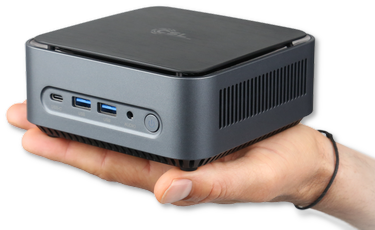 In 2012 the new "4x4" mini-computers started showing up. These were tiny compared to my original machines. They literally sit in the palm of your hand. All I needed to do was to swap in a high capacity NVMe storage drive to hold the files collection, install Windows 10 and install the media player. From there it was just a matter of a few tweaks, a bit of organization and off it went.
Using Windows 10, I am able to tweak the Windows File Explorer and let it do the heavy lifting for file management, browsing and launching of files. A "5 clicks or less" user interface is now possible and the whole thing finally comes together, as the screen shots below show. The images are from a 60 inch 4k TV set, with customized File Explorer display, using Media Player Classic Home Cinema and FFDShow to play movies and music.
When coupled with a good quality USB DAC, amplifier and speakers you get a true High Fidelity device in every sense of the term.
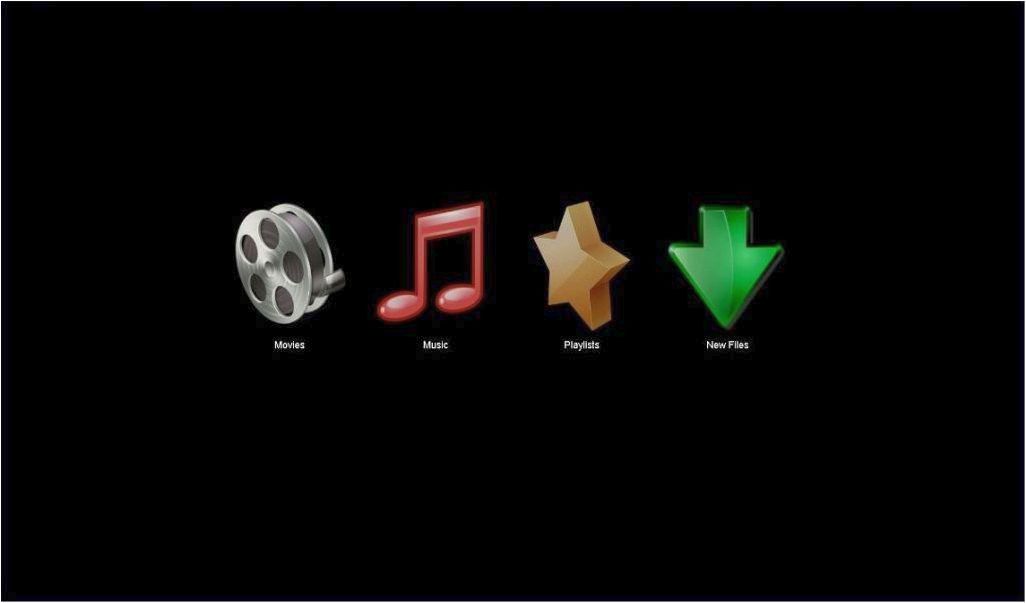
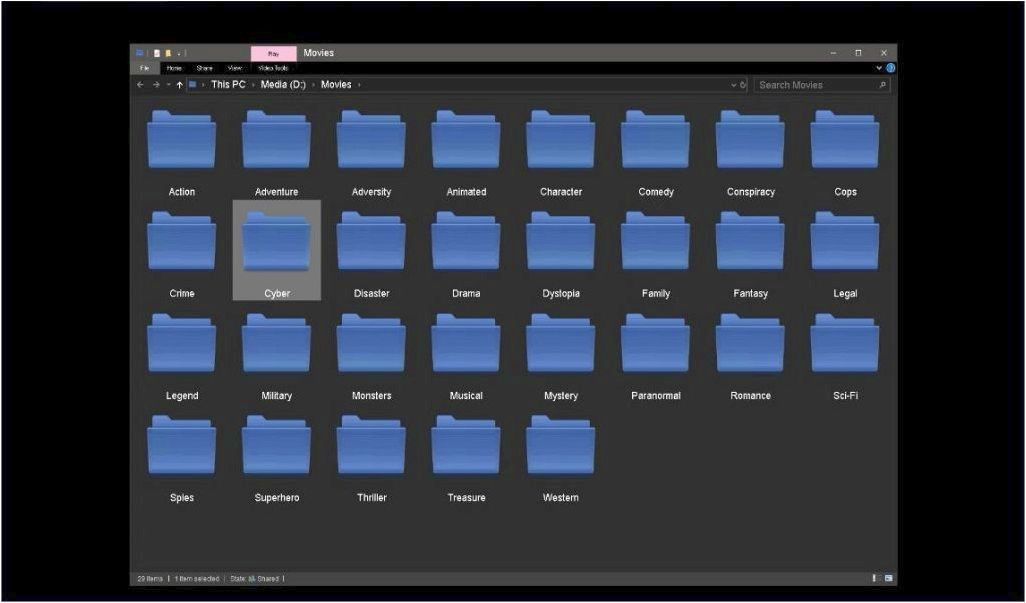
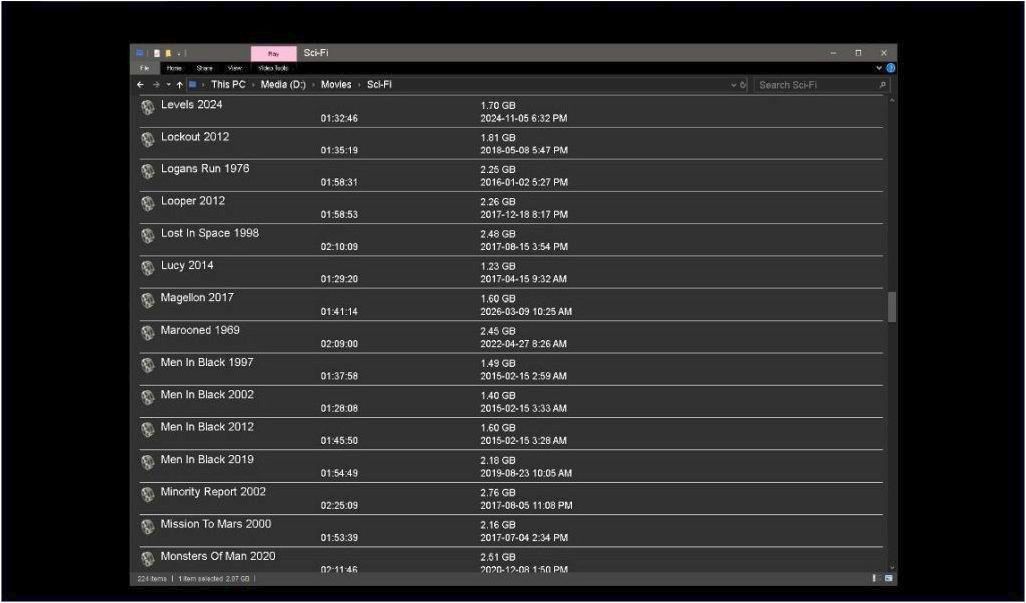
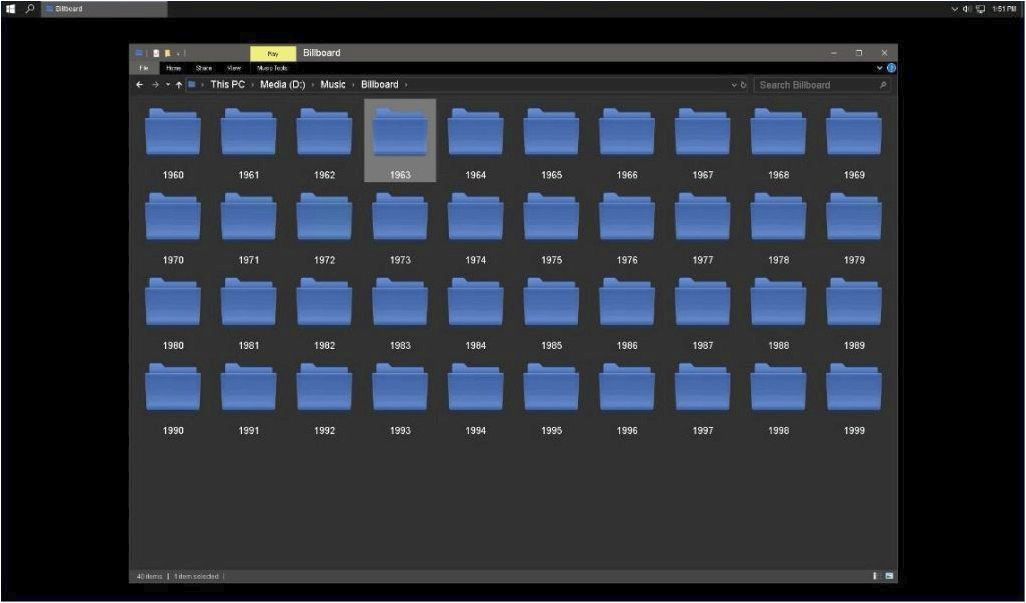
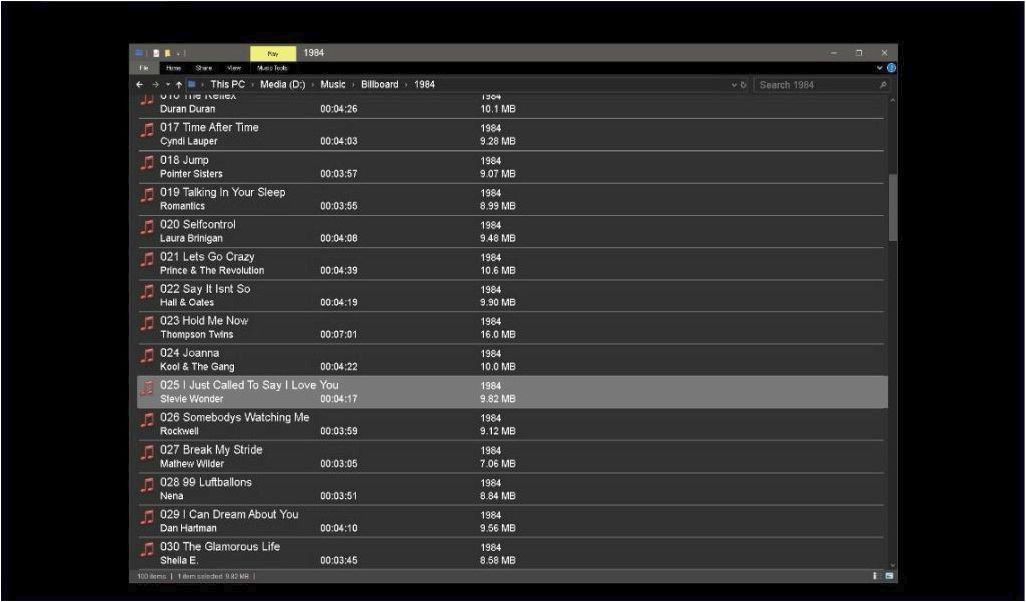
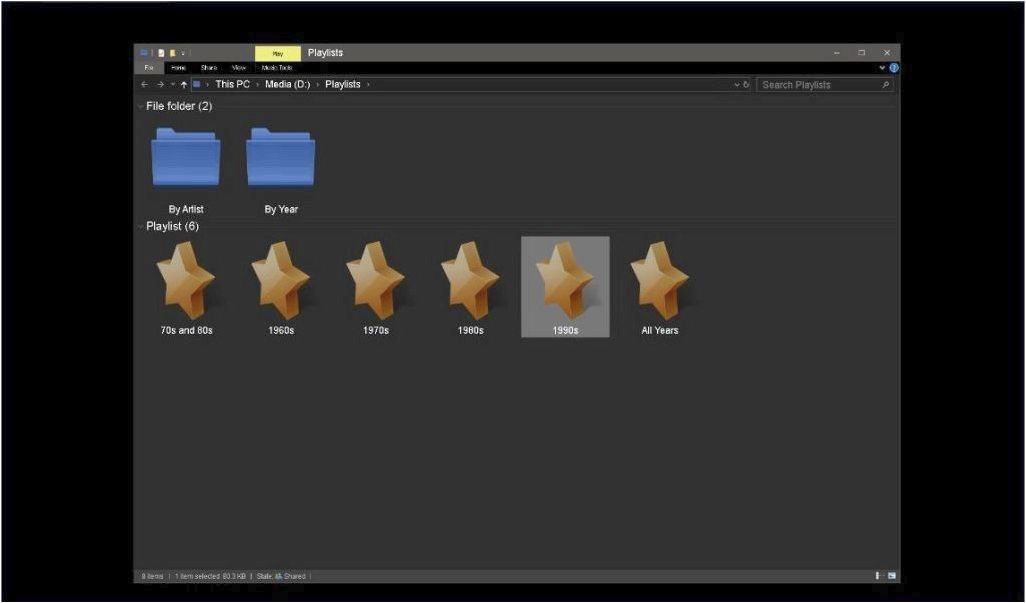
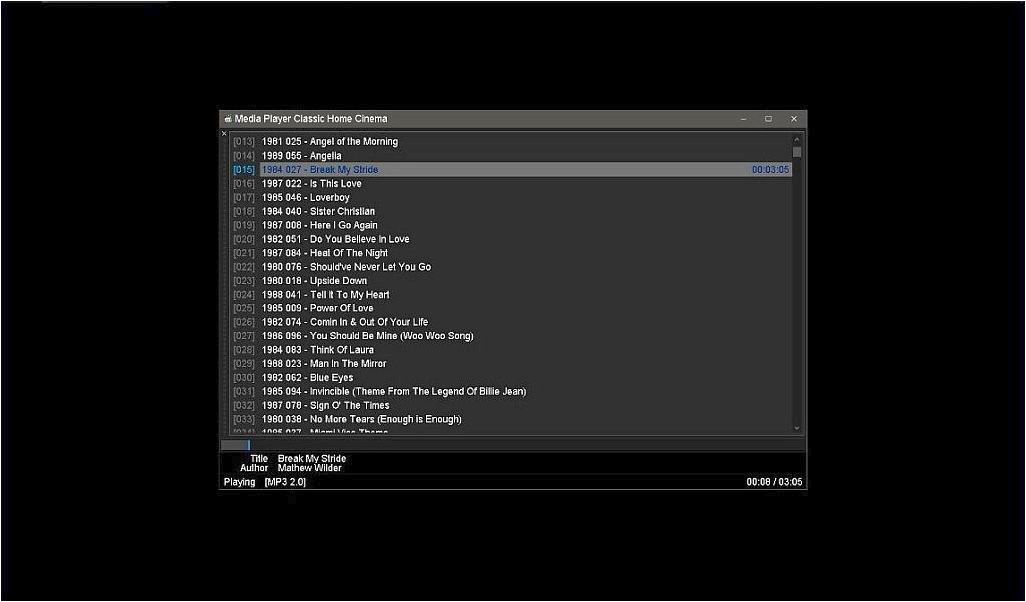

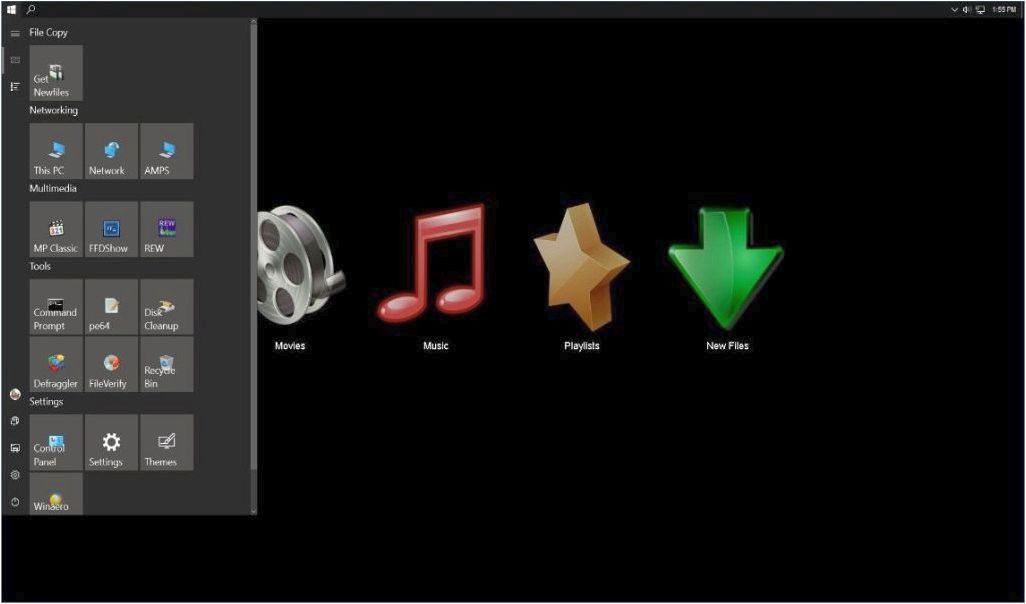
Of course this is still a PC. A simple tap on the Windows key opens the start menu and you can run other programs with ease. Streaming was easy, you could either install the streaming apps from the various providers or you could use a web browser with their websites. All the usual PC stuff was still there, too. You could surf the web, watch videos, read your email, do video and text conferencing, even run software like REW to help you improve your listening room setup.
Heck, the thing would even help you balance your chequebook.
Telemetry and spying
Early versions of Windows used either an updates website or service packs to keep the software up to date. But beginning with Windows XP updating became a background task. In Windows 7, updates were dispatched on a schedule. Then with Windows 10 it became mandatory. This puts your computer into very close contact with Microsoft.
Along with changes to updates, there was a steady increase in background communication. This started with error reports and activation codes. By the time Task Scheduler was introduced with Vista the machine was being scripted to run tasks constantly. Some of these tasks, such as Error Reporting, relayed personal information to Microsoft on a near daily basis.
In Windows 10 this started to become both intrusive and an inefficient use of the computer's hardware since it was almost always doing something other than running end-user programs. This was, fortunately, manageable through a series of system tweaks to shut down the background traffic.
Enshitification
In recent months, since the October 2025 deprecation of Windows 10, Windows 11 has been becoming more aggressive. Users are required to have Microsoft accounts. You will find advertising on the desktop, artificial intelligence everywhere, spyware, forced updates that reset user choices, updates that change default programs and even install programs on their own. Some are bad enough to cause system failures and end-user data loss.
Social media, news reports, videos and websites are busy telling of the problems people are having. Microsoft has lost its way and people are dumping Windows 11 in droves. Not good.
Updating an HTPC, which depends on stable settings and predictable performance, to Windows 11 is simply not a choice.
Alternative operating systems
The most common response to many of these problems is to switch to a different operating system. If other operating systems had their own version of things that gave essentially the same outcome, I would agree this is good advice. But unfortunately, I've been unable to find a suitable candidate.
Android will play your music and movie files, but it does so with mediocre sound quality and limited video capacity. It works, but not well.
Various Linux distros will do what Windows 10 does in the HTPC world. But they come with a difficult learning curve and minimal support. Also be aware that the basic audio from most Linux versions is somewhat lacking. Getting it to work the way Windows does for an HTPC will require additional software, a lot of fiddling in command line terminals and might involve repeated requests for help.
The Windows fix
Clearly there is a problem, but that doesn't mean we're stuck...
- 1) Use an update blocker
-
Digging into this I've observed that most of the current problems come from bad updates and stupid features being forced on Windows users. The simple answer -especially for Windows 11- is to block the updates.
The Sordum website offers a free Windows Update Blocker (WUB) you can download.
I have written an alternative INI file for WUB. Use it to block updates, shut down most of the telemetry and stop some seriously wasteful background tasks. I've called it WubPlus. You can download it from this site.
After downloading, expand the files to a folder in "Program Files". Then inside that folder right click WUB_64 and select "Run As Administrator". In the program itself select "Disable Updates" and click "Apply Now"; no more updates.
- 2) Stay on Windows 10
- In this case the end of support for Windows 10 actually works in our favour. Your computer will work just like it did before, without any loss of function. You just won't be inundated with all the faulty updates. Simply use the update blocker and you're good to go.
- 3) Backdate to Windows 10
-
You can backdate your system from Windows 11 to Windows 10 for free:
- Download the Media Creation Tool from Microsoft which will take you through the steps to make a Windows 10 USB installer drive.
- Be sure to backup any data that you don't want to lose.
- Unplug the network cable and shut down WiFi.
- Boot into the USB drive and follow the advanced installation steps to purge all Windows 11 partitions from the machine and install Windows 10.
- When the installation completes, apply WUB as detailed above.
You will have the choice of Home, Pro or Education versions. If your computer came with Windows 11 pre-activated and you choose the same edition when installing, it is possible that Windows 10 will self-activate using the Windows 11 product key stored in your machine's BIOS. Otherwise, you will need a valid activation key to complete this process.
- 4) Use tweaking software
-
There are numerous Windows Tweakers and Debloaters you can get online. You may want to try these:
O&O Shutup 10++ -- WinAero Tweaker -- Major Geeks Tweaks
Summing up
Even the more extensive media players and servers for Windows will still be affected by the generalized chaos Microsoft is causing. Your best bet is to settle in with Windows 10, block updates and wait to see if a viable alternative shows up.
If Microsoft doesn't soon return to its senses, this could be the end of the homebrew HTPC.